Tuesday, 1 May 2012

AniBoot: Provides Custom Boot Animations To Your Rooted Android Device

AniBoot features dozens of downloadable boot animations which can be applied to any rooted Android device in no more than a couple of taps. The app supports boot animation in three different screen resolutions – 800×480, 1024×768 & 1280×720 – each comprising at least a dozen various boot animations. Each boot animation can be previewed individually, and if it catches your eye, you can download and apply it to your device in a matter of just a few seconds. Details to follow.


Once the app is granted root access, it automatically creates a backup of your current boot animation, and prompts you to select the desired screen resolution for your custom boot animation. Both these options can be availed from within the app’s main preferences screen anytime you wish to make changes accordingly.

Now Run Android 4.0 ICS On Windows, Mac & Linux Using VirtualBox


You can use all the features and options of Andriod ICS without making any changes to your host system. You’ll require Oracle VirtualBox to run the virtual machine, of course. The rest is quite simple, but just in case you get stuck somewhere in the process, following is a brief and simple tutorial on how to get it running.
First, download and install VirtualBox (download link given at the bottom of the post). Now download the pre-configured Andriod ICS OS setup and extract it. When extracted, look for the file named Android-v4.vbox. Just double-click it to load the configuration file in VirtualBox.

Once loaded, you can start the Android ICS in a virtual machine by double-clicking the Android-v4 VM available in left sidebar.

Sunday, 29 April 2012

6GB Of Free Cloud Storage To PC, Android & iOS Brought by Maxthon Skyfile


Skyfile brings an initial offer of 6GB of free cloud storage space to anyone who registers for a new account. The desktop client lets you keep selective Skyfile folders in sync with your PC at all times while the Android & iOS clients allow remote access to all your Skyfile cloud content. However, more than any other aspect, it’s the advanced and secure file sharing features of Skyfile that deserve to be commended. More after the break.

Thursday, 26 April 2012

Define A Unique Unlock Pattern/Tap Sequence Over An Image Of Your Choice With Photo Lock Screen App[Android]


Photo Lock Screen is a lockscreen replacement Android app that brings an added layer of security to your beloved device, as it lets you set a custom unlock pattern traced over an image of your choice. You have the choice of defining as simple or complex an unlock pattern as you like, as there are no hard and fast rules in this regard.
The best part about Photo Lock Screen is that it can perfectly work in combination with your favorite home screen replacement app, and can be used as a standalone security mechanism on your Android. A rather vital aspect to consider while using Photo Lock Screen as your default lockscreen is that you must set the app as your device’s default action upon pressing the home button, or else, the lockscreen won’t be effective.

Once the app is installed, you’ll notice a couple of app icons added to your device’s app drawer. ThePhoto Lock icon lets you instantly lock the device whereas the Photo Lock Settings icon is to launch the app’s main settings screen from where you can permanently enable the app’s lockscreen, set your preferred home screen replacement app, Select Lock Photo (custom lockscreen background), andConfigure Lock Screen.
While selecting a custom background, make sure to pick an image with a maximum size of 320 x 480 pixels, since images with larger screen resolutions are inaccurately scaled down, thereby making the entire customization process a tad undesirable. While configuring the unlock pattern, the app prompts you to repeat the exact pattern at least twice in order to confirm it. Once succeeded, the app displays the confirmation message of your custom pattern being set as your device’s default unlock mechanism.
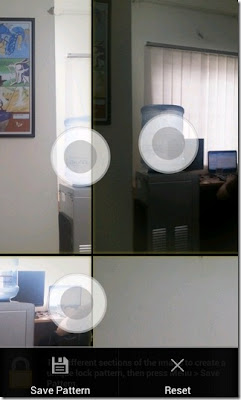

Please note that when it comes to unlocking your device via Photo Lock Screen, precision is the key. Try to use a background that can present you with some clear indication/hint regarding the pattern, just in case you somehow forget it. The best practice in this regard can be to use an image that itself contains several patterns embedded within the design, or else, you might be having tough time remembering/tracing the exact patterns on a rather plain image. Also, remember very carefully whatever custom pattern you’ve defined, and draw it absolutely accurately when required on the lockscreen.
Even the slightest of the deviations from the original pattern will result in failure of the unlock process. In case you fail to provide the accurate pattern in five consecutive attempts, the lockscreen becomes ineffective for the next 20 seconds, after which, you’re automatically logged out of your Google account, and prompted to sign back in to get things going.
Photo Lock Screen is available in the Google Play Store for free, and can be downloaded via the link or QR code provided below.


The Google Drive App For Android [Hands-On]


Overview

First and foremost, Google Drive for Android is not a new app. It’s the good old Google Docs app, rebranded. In fact if you have Docs installed and search for Drive in Play Store, you will see it installed and available as an update. In the app itself, not much has changed. It’s the same interface that we are all familiar with, with a few Drive-specific features added.

Friday, 20 April 2012

Real-Time Photo Sharing & Syncing Across PC, Mac, Android & iOS With Familiar


Familiar – a free app for Windows, Mac, Android and iOS that connects you to your close ones so that you can easily share photos with each other over the internet. Regardless of the devices or OS that your contacts are using, Familiar lets you share images with each other through slideshows. In essence, it’s a private social network comprising only your most important contacts, and lets you like, comment on and save all the photos that you’ve shared with each other. Apart from real-time syncing of shared photos, the app keeps you apprised of the addition of new photos to your contacts’ albums via push notifications.

One Click: Flash ClockworkMod Touch Or Stock Recovery On Optimus 3D

Custom recovery for a rooted Android device should not be an option, but at times, the procedure involved puts off most users who try and do without a recovery installed. The Optimus 3D is not exactly a new phone on the market, but certainly one of the most popular Android devices out there. For that said device, recovery installation never really came easy, or if it did, you never got the option of 3 recoveries in one package. Yup, thanks to the efforts of XDA-Developers forum member Paki0402 the device gets a recovery toolkit containing the option to flash ClockworkMod recovery, ClockworkdMod Touch recovery and if things get really out of control, the stock LG recovery. Read on for more on how you can use this app for your Optimus 3D.


So if you wish to proceed with flashing a recovery on your Optimus 3D, let’s get on with some flashing!

Disclaimer: Please attempt this guide at your own risk. We won’t be responsible in case your device gets bricked or damaged in any other way due to this method.

Requirements:

1. A rooted Optimus 3D.
2. ADB Installed.
3. Optimus 3D Recovery Toolkit.

Instructions:

1. To begin, download the recovery toolkit from the link above and extract the contents.
2. Connect the device to your PC and make sure USB Debugging is enabled.
3. Run the toolkit, and you’ll be faced with 3 options; to flash the stock recovery, ClockworkMod recovery  or the ClockworkMod Touch recovery.
4. Simply hit the recovery you want to install and let the tool work its magic.

For updates and queries, related to this tool, head over to the forum thread at XDA-Developers.

Twitter Delicious Facebook Digg Stumbleupon Favorites More